Understand and improve your Behavior Shift Score®
The Behavior Shift Score® (BSS) is Shiftic's science-based indicator of how well your Shift is set up to drive behavior change, scored from 0 to 100. It updates as you build the plan. A low score means the structure is mostly information delivery (e-learnings, one-off messages). A higher score means you've layered in the things behavior change needs: practice on live work tasks, a clear leadership “why,” manager follow-up, social proof, and feedback loops.
For a deeper explanation of what goes into the score and the science behind it, see this article.
This guide is about the practical question: once you have a score, how do you raise it?
There are three ways to raise the score, and you can mix them freely:
Click Improve Shift to let Shiftic propose a structured set of changes.
Click Improve Shift again, and again, to layer additional improvements.
Ask directly in the chat, in your own words.
You can also ask in the chat to explain the score, so you understand what is driving it.
Step 1. Find your starting score
Open the Shift you want to work on. Your current Behavior Shift Score sits at the top of the page, next to the project title. In the example below, the Shift “AI Adoption through e-learning” is at 28, Low potential.
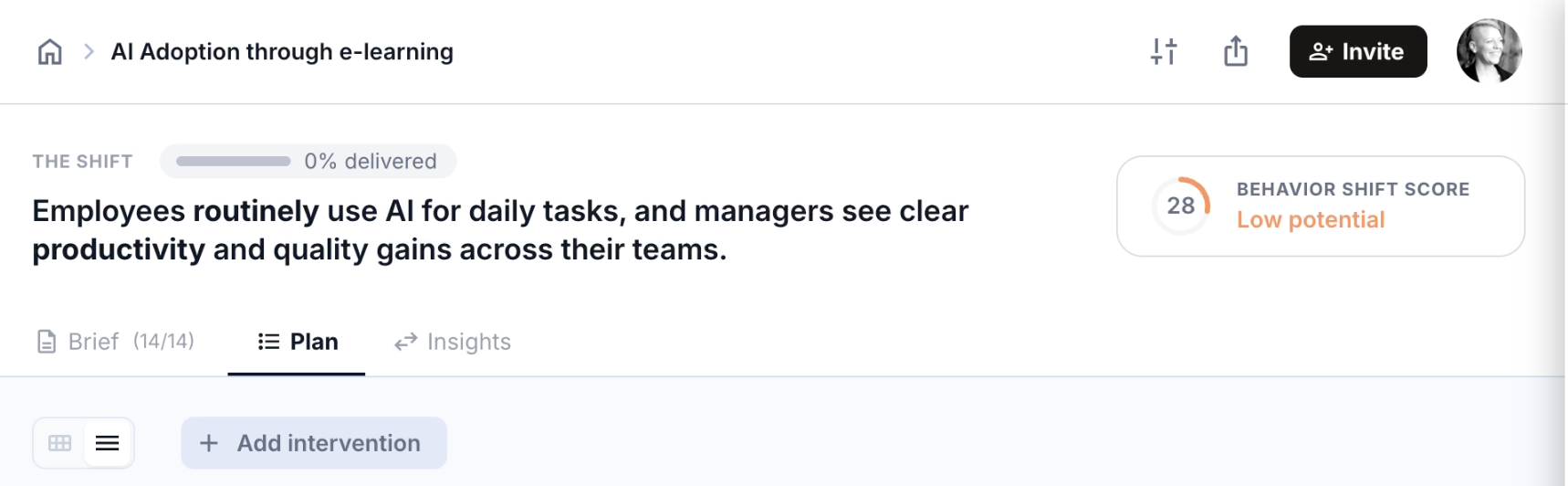
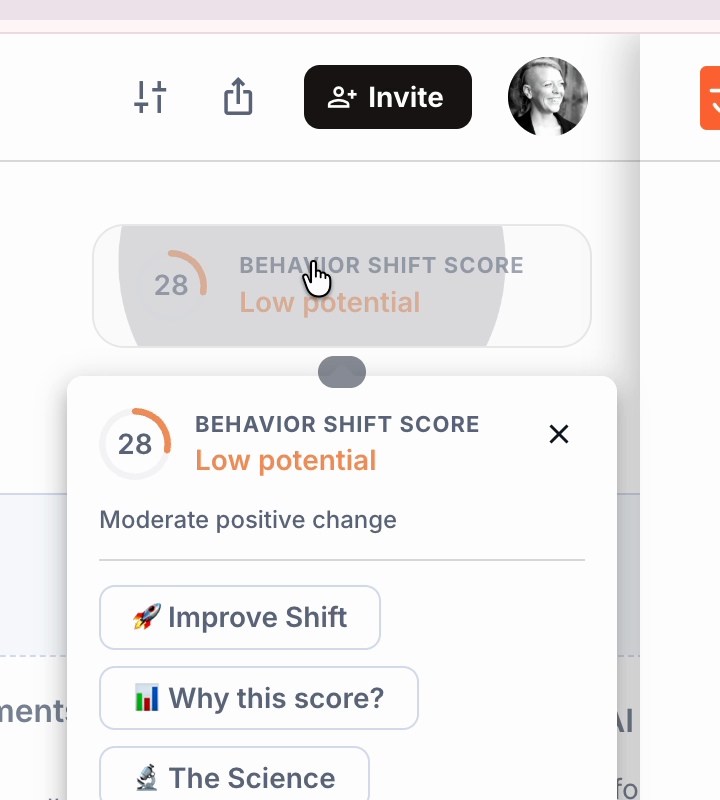
Click the score widget to open the score card. It shows the headline number, the label (Low, Moderate, or High potential), and three buttons:
Improve Shift,
Why this score?,
and The Science.
Step 2. Click Improve Shift
From the score card (or the Improve Shift chip at the bottom of the chat) click Improve Shift.
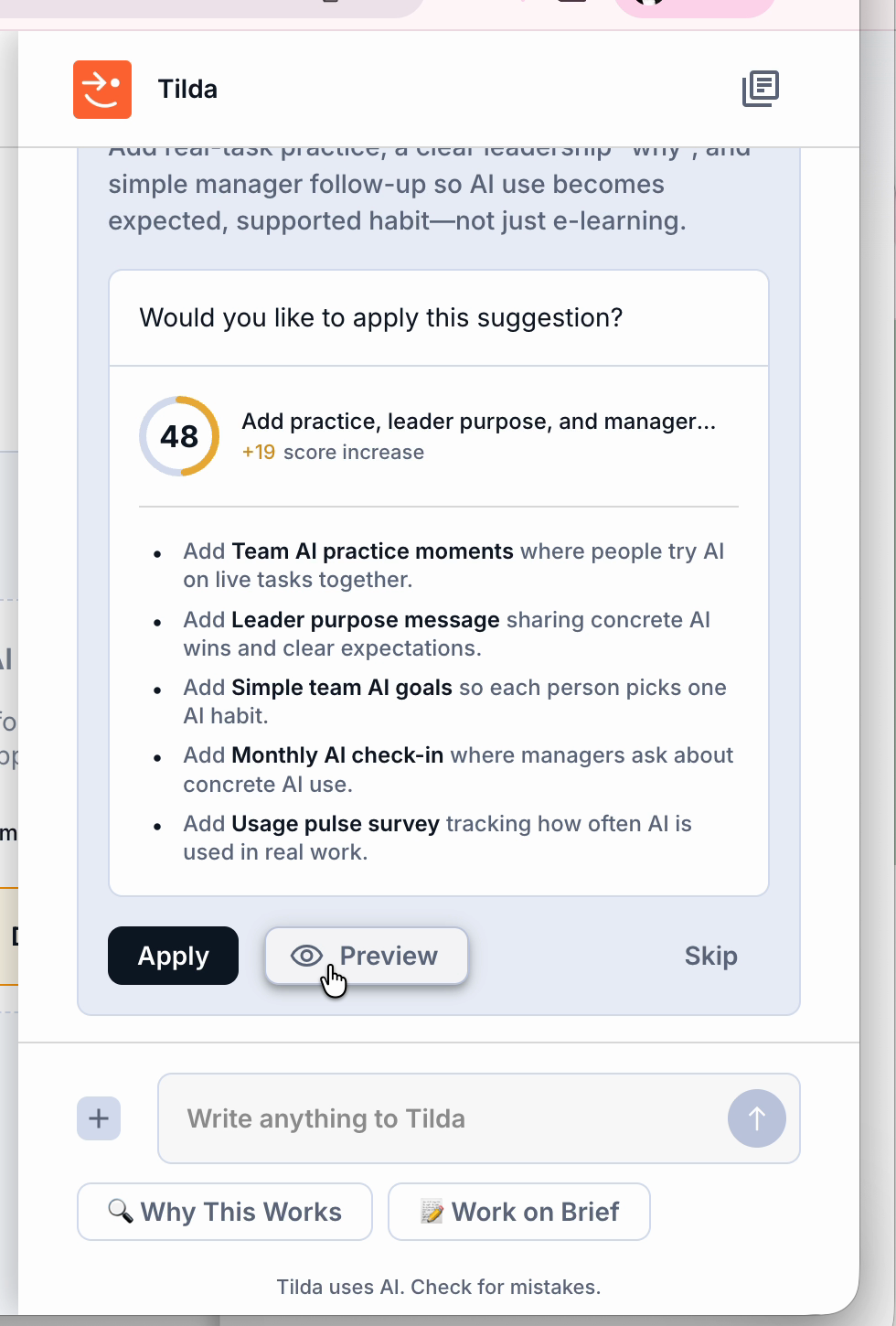
Tilda starts thinking in the chat. After a few seconds, it returns one named suggestion with:
A short rationale for why this change matters for this Shift. A projected new score (e.g. 48, +19). A list of the interventions or updates it will add.
Step 3. Preview, deselect anything you don't want, then apply
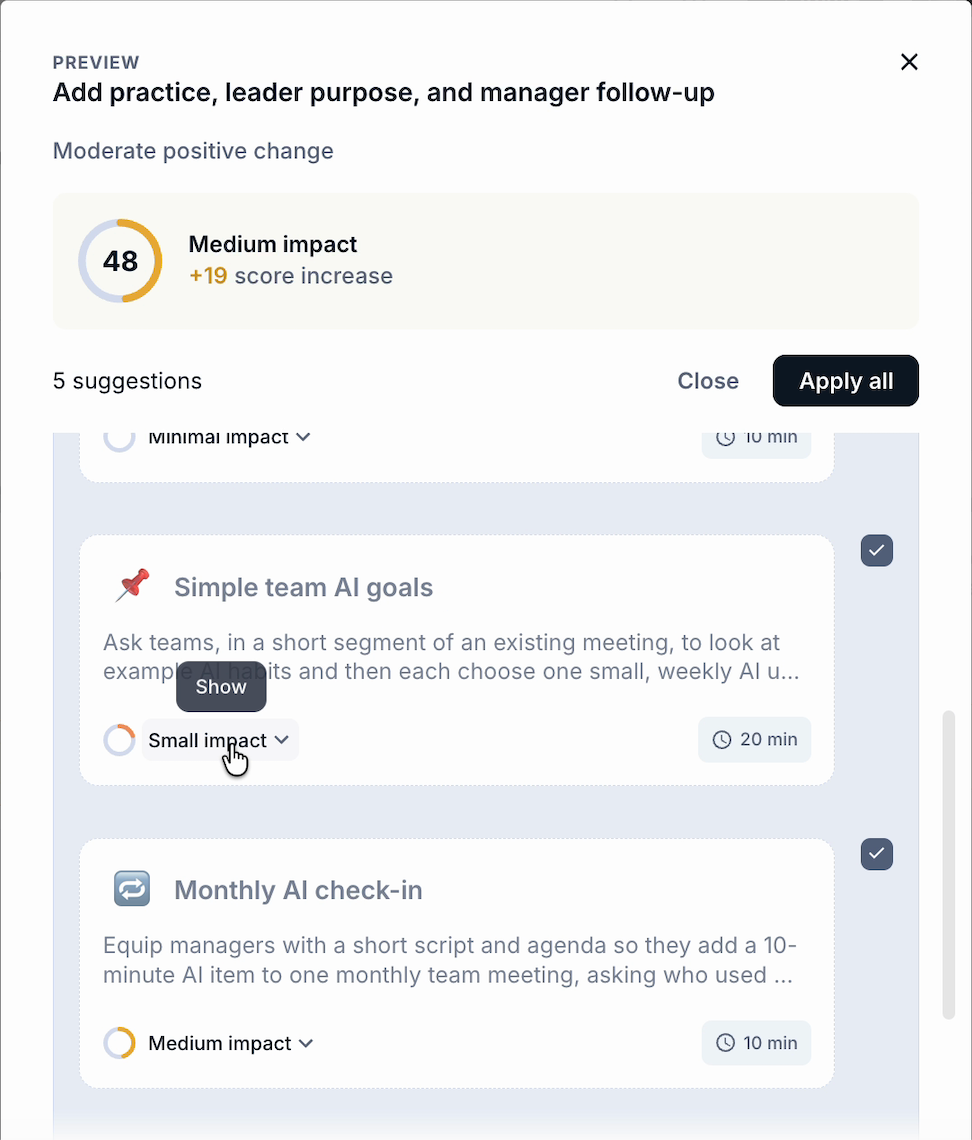
Before you commit, click Preview. The preview modal lists every intervention that will be added or updated. Each item has a checkbox. Uncheck anything you want to skip, and the Apply button counts how many changes will be applied.
When you're happy, click Apply (or Apply all from inside the preview). Tilda writes the new interventions into your Plan and updates the Brief where needed. The score on the page recalculates.
When you're happy, click Apply (or Apply all from inside the preview). Tilda writes the new interventions into your Plan and updates the Brief where needed. The score on the page recalculates.
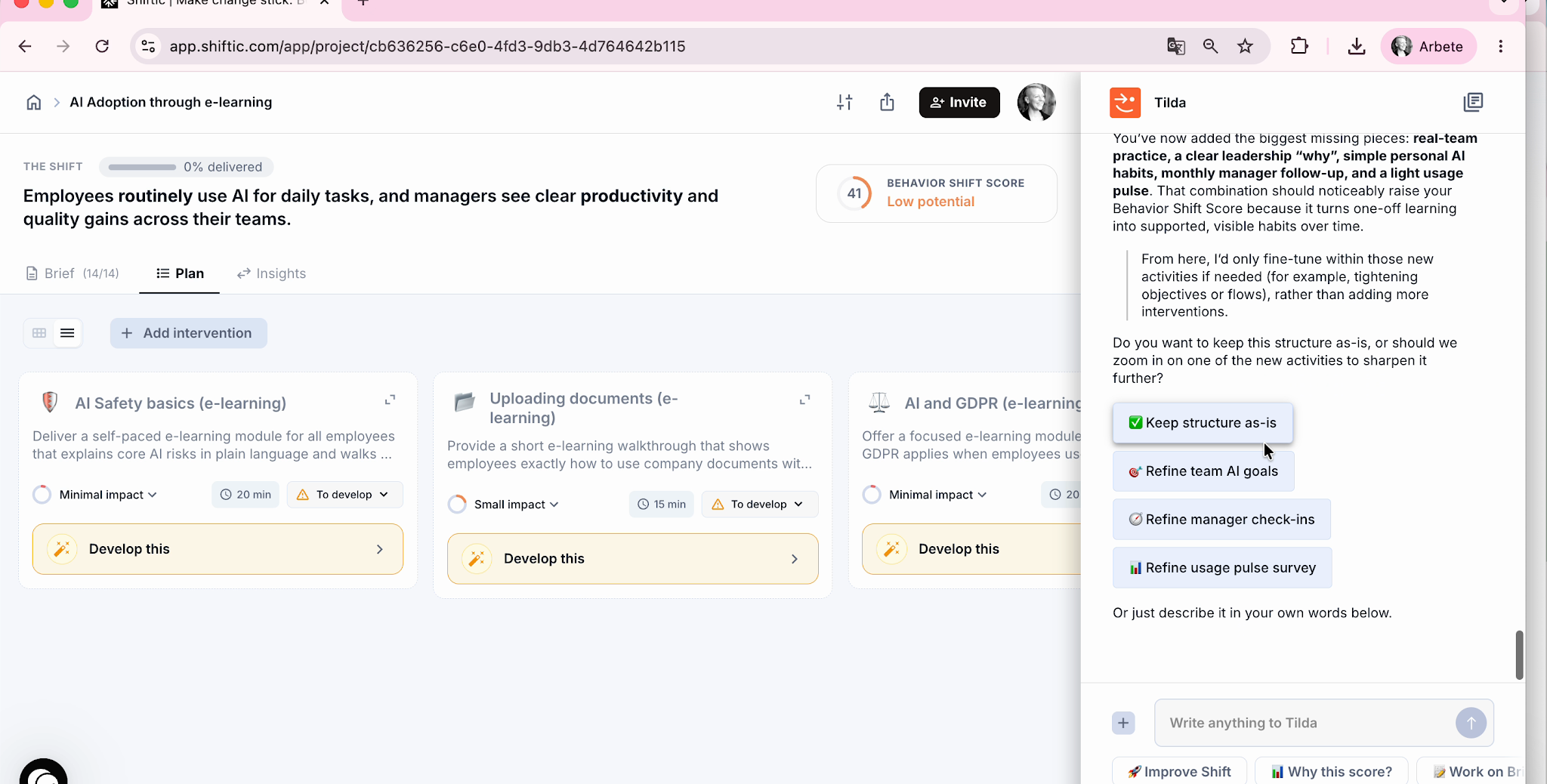
Step 4. Click Improve Shift again to keep layering improvements
You can continue to click Improve Shift a second time. Shiftic looks at your now-stronger plan and proposes the next-most-impactful change. Each round typically adds less than the one before. The early gaps are the biggest ones.
Was this helpful?
Still need help? Ask the team